
I wanted to know how far AI can go beyond writing content. Can it actually work inside a live website? To find out, I connected my WordPress site to Claude through the Elementor MCP server and asked it to help me improve the site.
It worked, but not in the way I expected. Here’s how I set it up, what went wrong and what I’d tell anyone trying it.
What Is an MCP Server?
MCP stands for Model Context Protocol. It’s a standard way to give an AI assistant tools it can use. Without it, Claude can only tell you what to change. With it, Claude can read your site and make changes through the tools the server provides.
Elementor 4 includes an MCP server, so your WordPress site can offer those tools to an AI client like Claude.
How I Connected It
1. Create an application password
In WordPress, go to Users → Profile → Application Passwords and create a new one. It lets an outside tool sign in without using your main password, and you can revoke it at any time.
2. Encode your login details
The connection uses Basic authentication, which needs username:application-password encoded in Base64.
3. Add the server to Claude’s config
I added this to my Claude Desktop config file, using the mcp-remote package to reach the site. Replace the placeholders with your own domain and encoded value:
{
  "mcpServers": {
    "my-site-elementor": {
      "command": "npx",
      "args": [
        "-y",
        "mcp-remote",
        "https://YOUR-SITE.com/wp-json/elementor/mcp/",
        "--header",
        "Authorization: Basic YOUR_BASE64_VALUE"
      ]
    }
  }
}
Keep this value private. Base64 is encoding, not encryption, so anyone who sees it can read your password and act as you on your site. Never paste it into a screenshot, a public repo or a post.
4. Restart Claude and test it
After a restart, I asked Claude to list my pages. Once it could see them, the connection was working.
The Surprise: MCP Couldn’t Edit Most of My Site
The Elementor MCP could read my pages, but it can only edit the new Atomic (V4) elements. My site was built with classic Elementor widgets, so the MCP couldn’t change them.
Claude worked around this by making its edits through the Elementor editor in a browser and through the WordPress REST API. If your site uses classic widgets, expect the same limit. Check what the MCP can actually edit before you plan around it.
What We Did with It
- Fixed headings, titles, meta descriptions and internal links across 12 pages
- Added FAQ schema to the key pages
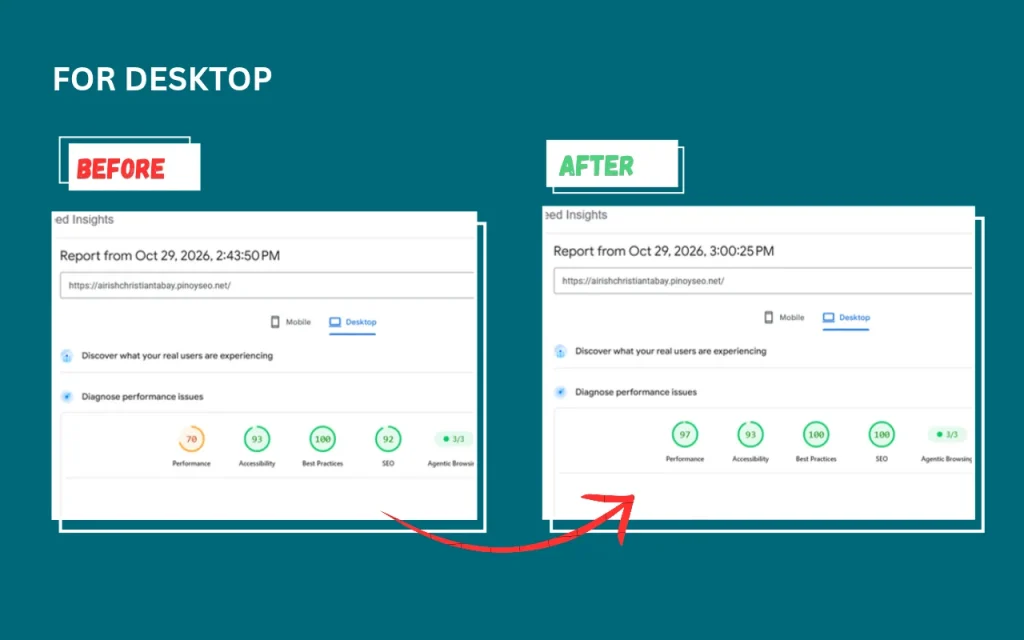
- Raised the homepage’s PageSpeed performance score from 58 to 82 on mobile and from 70 to 97 on desktop
- Raised the SEO score from 92 to 100
- Built and launched a new design with a light and dark mode toggle
You can see the full before-and-after results in my Claude and Elementor MCP case study.
What I’d Tell Anyone Trying This
- Back up first. Claude is working on your real site, so make sure you can roll back.
- Work in drafts. Ask for a draft, review it yourself, and only then say “publish”.
- Test before and after. Run PageSpeed Insights after each round of changes so you know what actually helped.
- Protect your access. Use an application password just for this, and revoke it when you no longer need it.
- Stay in charge. AI is fast at audits and repetitive fixes, but you’re still responsible for what goes live.
I’m still early in my SEO career, and projects like this are how I’m learning. If you’d like help with your own website’s technical SEO, get in touch.